Can you learn another language in the time it takes for your machine to boot? Do you turn on your PC when you go to bed, so it's finished booting by the time you get home from work the next day?
Process Explorer shows you information about which handles and DLLs processes have opened or loaded.
Process Explorer shows you information about which handles and DLLs processes have opened or loaded.
Autoruns shows you what programs are configured to run during system bootup or login, and shows you the entries in the order Windows processes them.
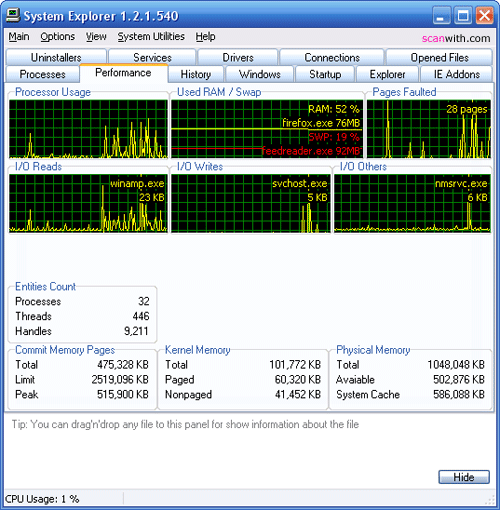
Features of SystemExplorer 2 :
· Detailed informations about Tasks, Processes, Startups, IE Addons, Uninstallers, Windows, Services, Drivers, Connections and Opened Files
· Easy check of suspicious files via VirusTotal service.
· Easy search details about file/process via online databases
· Easy access to System Utilities
· Performance graphs for monitoring usage of system resources in time
· Action History for monitoring processes activities
· Making of System Snapshots for easy finding of system changes.
· Multiple language support (English, Espanol, Deutsch, Portuguese, Japanese)
What's New in SystemExplorer 2.3.0 :
· New CPU Cores Usage Graphs and detailed information about processor usage. (C1,C2,C3,DPC,Interrupt and Privileged Time).
· Improved look of Performance Graphs and minor bug fixes.
What's New in SystemExplorer 1.5 :
· Added Support for External and Internal Plugins.
· Added Filtering support to lists.
· Security: New plugin adds security enhancements
· Modules: New plugin adds Modules tab to Monitoring group
· Launcher: New plugin adds support for "Create New Task" dialog with autosearch and suggestions features. Launcher dialog can be displayed via ALT+SPACE
· System Report: New plugin for generation of System Report. Accessible from Menu "Generate System Report"
· Processes: Added "Affinity Column" to list
· Processes: Added "Affinity Settings" to Processes Popup
· Processes: Added "Priority Column" to list
· Processes: Added "Process Start Time" Column to list
· Processes: Added "Command Line Params" Column to list
· FileDetails: Added "Copy All to Clipboard" button
· History: Added "Copy To Clipboard"
· Search: Implemented searching in all tabs via CTRL+F
· Drivers: Added option for change "Driver Startup Type"
· Opened Files: Added "Close Handle" Option to popup
· Snapshots: Added Save results in CSV format
· Added "Select Columns" to Menu>View
· Added File Check via virusscan.jotti.org
· Added Save List in CSV format
· All tabs were transformed to internal plugins. Unwanted tabs can be hidden in Plugin Manager.
· Optimised running in Tray. CPU usage is near to zero, if you don't have active Performance Tab.
· Processes: Changed Process CPU Usage measuring method.
· Snapshots: Moved to group "Monitoring", tab "Snapshots".
· Snapshots: New snapshots format
· Snapshots: All code was rewritted
· Snapshots: Optimized Text Report
· Launcher: Improved search result sorting algorithm
· Uninstallers: Moved to group "Software"
· Improved support for dark themes
· Improved support for 120 DPI fonts
· Languages stored in languages directory...Removed from resources
· Language Detection Improvements
Autoruns shows you what programs are configured to run during system bootup or login, and shows you the entries in the order Windows processes them.
These programs include ones in your startup folder, Run, RunOnce, and other Registry keys. You can configure Autoruns to show other locations, including Explorer shell extensions, toolbars, browser helper objects, Winlogon notifications, auto-start services, and much more. Autoruns goes way beyond the MSConfig utility bundled with Windows Me and XP.
Autoruns' Hide Signed Microsoft Entries option helps you to zoom in on third-party auto-starting images that have been added to your system and it has support for looking at the auto-starting images configured for other accounts configured on a system. Also included in the download package is a command-line equivalent that can output in CSV format, Autorunsc.
You'll probably be surprised at how many executables are launched automatically!
What's New in Autoruns 10.01 :
· This fixes a bug in the Registry jump-to function for HKCU registry paths
· This major update to Autoruns introduces the ability to scan offline Windows installations, adds .exe and .cmd extension handlers, defaults to hiding Windows entries to reduce noise in the common use case, and includes bug fixes.
LICENSE: FREEWAREDownload[ Autoruns 10.02 ]
SystemExplorer helps you to find out everything you need to know about your system: detailed informations about Processes, Startups, Explorer, IE Addons, Uninstallers and much more!
Features of SystemExplorer 2 :
· Detailed informations about Tasks, Processes, Startups, IE Addons, Uninstallers, Windows, Services, Drivers, Connections and Opened Files
· Easy check of suspicious files via VirusTotal service.
· Easy search details about file/process via online databases
· Easy access to System Utilities
· Performance graphs for monitoring usage of system resources in time
· Action History for monitoring processes activities
· Making of System Snapshots for easy finding of system changes.
· Multiple language support (English, Espanol, Deutsch, Portuguese, Japanese)
What's New in SystemExplorer 2.2 :
· This version contains bugfixes and updated language files. The major change can be found on Processes window - improved visibility was added. First column with the process name is fixed, not scrollable to the sides, so it can be visible all the time. For users using complex process actions visibility (up to 27 parameters in different columns), this will help in orientation over the process window.
What's New in SystemExplorer 1.5 :
· Added Support for External and Internal Plugins.
· Added Filtering support to lists.
· Security: New plugin adds security enhancements
· Modules: New plugin adds Modules tab to Monitoring group
· Launcher: New plugin adds support for "Create New Task" dialog with autosearch and suggestions features. Launcher dialog can be displayed via ALT+SPACE
· System Report: New plugin for generation of System Report. Accessible from Menu "Generate System Report"
· Processes: Added "Affinity Column" to list
· Processes: Added "Affinity Settings" to Processes Popup
· Processes: Added "Priority Column" to list
· Processes: Added "Process Start Time" Column to list
· Processes: Added "Command Line Params" Column to list
· FileDetails: Added "Copy All to Clipboard" button
· History: Added "Copy To Clipboard"
· Search: Implemented searching in all tabs via CTRL+F
· Drivers: Added option for change "Driver Startup Type"
· Opened Files: Added "Close Handle" Option to popup
· Snapshots: Added Save results in CSV format
· Added "Select Columns" to Menu>View
· Added File Check via virusscan.jotti.org
· Added Save List in CSV format
· All tabs were transformed to internal plugins. Unwanted tabs can be hidden in Plugin Manager.
· Optimised running in Tray. CPU usage is near to zero, if you don't have active Performance Tab.
· Processes: Changed Process CPU Usage measuring method.
· Snapshots: Moved to group "Monitoring", tab "Snapshots".
· Snapshots: New snapshots format
· Snapshots: All code was rewritted
· Snapshots: Optimized Text Report
· Launcher: Improved search result sorting algorithm
· Uninstallers: Moved to group "Software"
· Improved support for dark themes
· Improved support for 120 DPI fonts
· Languages stored in languages directory...Removed from resources
· Language Detection Improvements
Download[ System Explorer 2.2.4 ]Download[ SystemExplorer 1.5 ]Download[ SystemExplorer 1.5 Portable ]
Can you learn another language in the time it takes for your machine to boot? Do you turn on your PC when you go to bed, so it's finished booting by the time you get home from work the next day?
When 
If each program tries to do this at the same time, you soon notice the slow down that occurs, due to your CPU trying to help all the programs to load, and your hard disk accessing multiple files.
Startup Delayer allows you to setup how many seconds after Windows has started, to load each program.
• For Example:
If you have your mail program and a special clock starting up, then you can make your mail start say 10 seconds after Windows has loaded, and then the special clock start 20 seconds after Windows Starts.
What's New in Startup Delayer 2.4.138 :
· Fixed a bug when using Space evenly in some circumstances - Thanks Alec!
· Fixed a disable bug that was caused due to certain ordering of items - Thanks Gary!
• Startup Delayer 2.4.136
· Fixed a bug when disabling a non-delayed application, that caused the settings files to be read incorrectly
· Updated Dutch language file - Thanks Piet Bruinsma!
· Updated Italian language file - Thanks Rinaldo M. aka Whiteshark!
Download [ Startup Delayer 2.4.138 ]
Autoruns shows you what programs are configured to run during system bootup or login, and shows you the entries in the order Windows processes them.
These programs include ones in your startup folder, Run, RunOnce, and other Registry keys. You can configure Autoruns to show other locations, including Explorer shell extensions, toolbars, browser helper objects, Winlogon notifications, auto-start services, and much more. Autoruns goes way beyond the MSConfig utility bundled with Windows Me and XP.
Autoruns' Hide Signed Microsoft Entries option helps you to zoom in on third-party auto-starting images that have been added to your system and it has support for looking at the auto-starting images configured for other accounts configured on a system. Also included in the download package is a command-line equivalent that can output in CSV format, Autorunsc.
You'll probably be surprised at how many executables are launched automatically!
What's New in Autoruns 10.0 :
· This major update to Autoruns introduces the ability to scan offline Windows installations, adds .exe and .cmd extension handlers, defaults to hiding Windows entries to reduce noise in the common use case, and includes bug fixes.
Download [ Autoruns 10.0 ]
Process Explorer shows you information about which handles and DLLs processes have opened or loaded.
The Process Explorer display consists of two sub-windows. The top window always shows a list of the currently active processes, including the names of their owning accounts, whereas the information displayed in the bottom window depends on the mode that Process Explorer is in: if it is in handle mode you'll see the handles that the process selected in the top window has opened; if Process Explorer is in DLL mode you'll see the DLLs and memory-mapped files that the process has loaded.
Process Explorer also has a powerful search capability that will quickly show you which processes have particular handles opened or DLLs loaded.
Changes in Process Explorer 12 :
· This Process Explorer release includes several significant new features, including the showing the web hosted in IE8 processes in the process tooltip, display of a svchost’s service host category in its tooltip, mapping of service names to threads on the threads tab and TCP/IP tabs of the process properties dialog on
Download [ Process Explorer 12.04 ]
SystemExplorer helps you to find out everything you need to know about your system: detailed informations about Processes, Startups, Explorer, IE Addons, Uninstallers and much more!
Features of SystemExplorer 2 :
· Detailed informations about Tasks, Processes, Startups, IE Addons, Uninstallers, Windows, Services, Drivers, Connections and Opened Files
· Easy check of suspicious files via VirusTotal service.
· Easy search details about file/process via online databases
· Easy access to System Utilities
· Performance graphs for monitoring usage of system resources in time
· Action History for monitoring processes activities
· Making of System Snapshots for easy finding of system changes.
· Multiple language support (English, Espanol, Deutsch, Portuguese, Japanese)
What's New in SystemExplorer 2.2 :
· This version contains bugfixes and updated language files. The major change can be found on Processes window - improved visibility was added. First column with the process name is fixed, not scrollable to the sides, so it can be visible all the time. For users using complex process actions visibility (up to 27 parameters in different columns), this will help in orientation over the process window.
What's New in SystemExplorer 1.5 :
· Added Support for External and Internal Plugins.
· Added Filtering support to lists.
· Security: New plugin adds security enhancements
· Modules: New plugin adds Modules tab to Monitoring group
· Launcher: New plugin adds support for "Create New Task" dialog with autosearch and suggestions features. Launcher dialog can be displayed via ALT+SPACE
· System Report: New plugin for generation of System Report. Accessible from Menu "Generate System Report"
· Processes: Added "Affinity Column" to list
· Processes: Added "Affinity Settings" to Processes Popup
· Processes: Added "Priority Column" to list
· Processes: Added "Process Start Time" Column to list
· Processes: Added "Command Line Params" Column to list
· FileDetails: Added "Copy All to Clipboard" button
· History: Added "Copy To Clipboard"
· Search: Implemented searching in all tabs via CTRL+F
· Drivers: Added option for change "Driver Startup Type"
· Opened Files: Added "Close Handle" Option to popup
· Snapshots: Added Save results in CSV format
· Added "Select Columns" to Menu>View
· Added File Check via virusscan.jotti.org
· Added Save List in CSV format
· All tabs were transformed to internal plugins. Unwanted tabs can be hidden in Plugin Manager.
· Optimised running in Tray. CPU usage is near to zero, if you don't have active Performance Tab.
· Processes: Changed Process CPU Usage measuring method.
· Snapshots: Moved to group "Monitoring", tab "Snapshots".
· Snapshots: New snapshots format
· Snapshots: All code was rewritted
· Snapshots: Optimized Text Report
· Launcher: Improved search result sorting algorithm
· Uninstallers: Moved to group "Software"
· Improved support for dark themes
· Improved support for 120 DPI fonts
· Languages stored in languages directory...Removed from resources
· Language Detection Improvements


